



Check-In Instructions
Step 1
Select Language
Since you will not be able to change the language later in the check-in process, please select your language now in the top-right corner of the check-in terminal.
Step 2
Start the check-in process
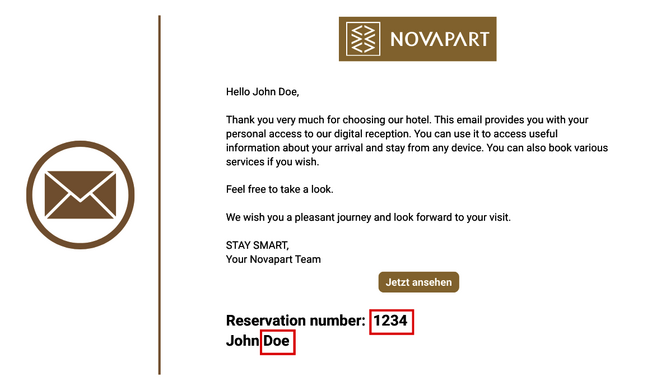
Enter your reservation number and last name at the check-in kiosk. You can find this information in the email with the subject line “Booking confirmed: ...” that you received from us.
Alternatively, this email also contains a QR code that you can scan at the check-in kiosk.
Step 3
Enter your registration details
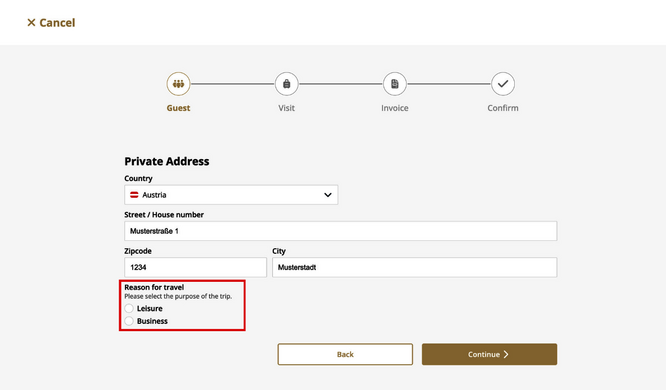
Please enter your registration details. You can provide a BUSINESS ADDRESS if you are traveling on business. If you do not need to do this, you can proceed directly to STEP 4.
Optional: Change billing address / company address
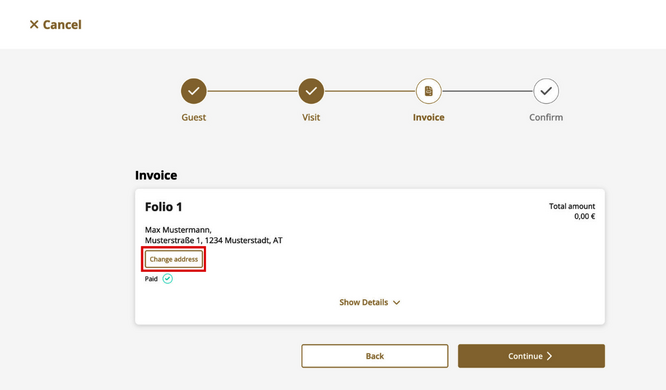
Click the “Change Address” button.
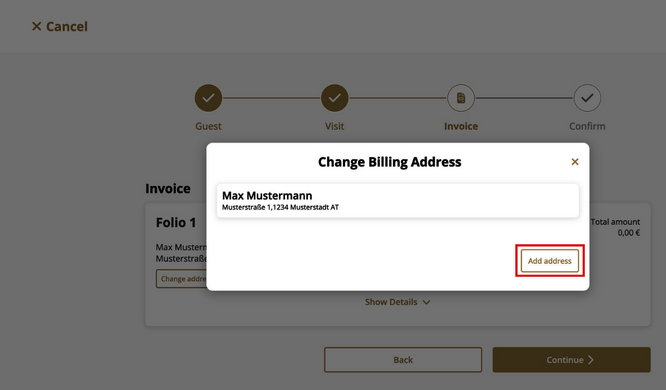
Click the “Add Address” button.
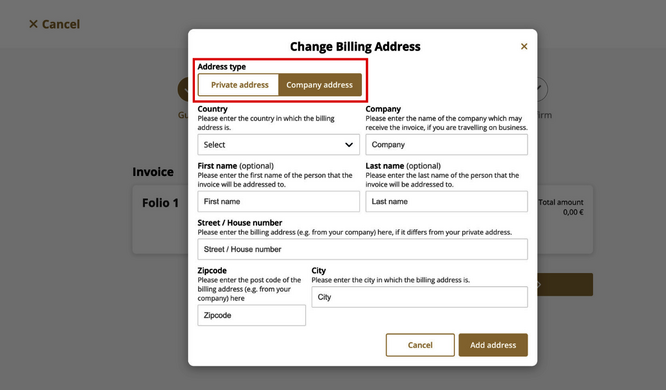
At the top, under “Address Type,” select “Business Address” and fill in all the details. To confirm, click the “Add Address” button, and you have successfully changed your billing address.
Step 4
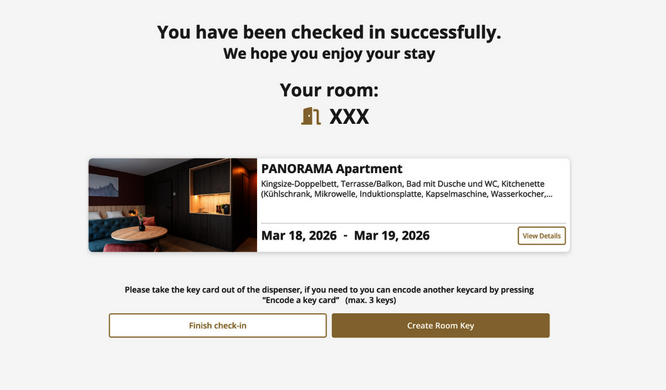
Complete Check-In & Generate Key Card
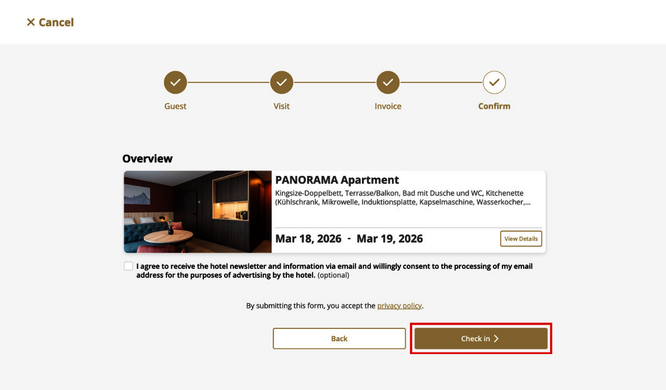
Sign in the “Digital Signature” field and click the “Check-In” button.
Click the “Encode Room Key” button to create a key card. The key card grants you access to the hotel, the underground parking garage, and your room.
Alternatively, you can also open all relevant doors using your smartphone via the digital front desk.
Go to the digital front desk
Finally, click the “Complete Check-In” button. Congratulations—you have successfully checked in.
Frequently Asked Questions
Simply enter your reservation number and last name at the check-in terminal. You can find this information in the email with the subject line “Booking Confirmed: …” that you received from us.
Then select the “Encode Room Card” option and follow the on-screen instructions. Your new room key will be issued immediately.
You can easily find your room number:
- In the confirmation email you received after check-in
- At the digital reception desk
Alternatively, you can enter your reservation details at the check-in terminal and click “Encode Room Card.” Your room number will then be displayed.
If you don’t need a new key card, you can simply cancel the process.
If you need a different billing address, you have two options:
- During the check-in process, select “Business Trip” as the reason for your stay and enter your preferred billing address directly.
- Alternatively, you can email your billing information to wels@novapart.at.
We’ll be happy to update your invoice.
On the screen, select the “Scan QR Code” option.
You can find the required QR code in the confirmation email you received after checking in.
Then hold the QR code on your smartphone horizontally under the scanner. Check-in will start automatically as soon as the code is recognized.
Für den Check-In benötigen Sie Ihre Reservierungsnummer der jeweiligen Buchungsplattform.
Bitte verwenden Sie keine Vorgangsnummer, keinen PIN-Code oder ähnliche Nummern.
Die richtige Reservierungsnummer ist in der E-Mail mit Ihren Check-In Informationen angegeben und besteht in der Regel aus 4 bis 5 Ziffern.